Release Notes, AmkaiOffice Version 4.5.2
Surgical Information Systems is pleased to provide our users with AmkaiOffice version 4.5.2. This document provides an overview of new features, enhancements to existing features, and issues fixed in this release. While this document is intended to inform users of significant changes made to the software, all changes may not be reflected in the document. If you have questions, please contact SIS Client Support.
As with all new release versions, administrators should check roles and permissions for new features and new reports and provide access to staff members who will use these enhancements.
All product documentation is available from our online help system which is accessible from within AmkaiOffice for non-hosted clients. SIS-hosted clients can access online help by visiting the following URL: https:\\officehelp.amkaicloud.com
Some additional material, such as state report user guides, and code sets are available for download from AmkaiCentral, our Web-based client portal. If you have not yet registered for AmkaiCentral, please contact Client Support for assistance.
Please note that certain features in AmkaiOffice 4.5.2 require SIS Advanced, an add-on cloud-based application.
AmkaiOffice versions 4.2 and above require Amazon Corretto 11 and will only run on 64 Bit Workstations. AmkaiOffice now uses Amazon Corretto instead of Oracle Java.
New Features
SIS Advanced
Overview
AmkaiOffice version 4.5.2 introduces connectivity to SIS Advanced, a cloud-based technology solution that makes it easy for surgery centers to:
- Deliver electronic pre- and post-surgical questionnaires to patients, helping to improve nursing productivity with integrated Surescripts for home medications, and boosting patient satisfaction.
- Work efficiently with surgeons’ offices to schedule and coordinate cases, including electronic case requests and broadcasting block release notifications.
- Display patient tracking information via electronic boards and family notifications. Replace inefficient paper-based and white board tracking with electronic patient tracking boards for Pre-Op, OR, Recovery, and the Waiting Room (display monitors not included).
- Enable physicians and surgery staff to view case information, including schedules, on their mobile devices.
- Electronically and conveniently communicate with patients via text or email to deliver patient reminders, instructions, and more.
The following new features and enhancements have been made to AmkaiOffice to facilitate integration between AmkaiOffice and SIS Advanced. Call 800-866-0656 to schedule a demonstration of SIS Advanced. Contact your SIS Sales Executive for information about pricing for SIS Advanced, which is available as a Subscription Service.
Accessing SIS Advanced
A new icon has been added to the tool bar in AmkaiOffice which provides access to SIS Advanced:

In addition to a subscription to SIS Advanced, you must have internet access and use Google Chrome to access SIS Advanced. If you do not have Chrome installed and you click the SIS Advanced icon, a message will display indicating that it will need to be installed. If the URL has not been entered in the System Administration module, you will receive the message “SIS Advanced URL is not configured.”
System Administration
New check points have been added for SIS Advanced.
- Check Point for SIS Advanced ConfigurationCheck Point for SIS Advanced Configuration
The following new check point controls which users can access the Configuration setting to add/edit the URL configuration:
- System Administration
- SIS Advanced Configuration
- Full Access
- SIS Advanced Configuration
The check point will default to No Access for all Roles except Full Access. It is recommended that only a limited number of users have access to the URL configuration settings.
- System Administration
- Check Point for Access to SIS AdvancedCheck Point for Access to SIS Advanced
A new check point controls which users can access SIS Advanced when they click on the tool bar icon.
The users who would need this check point enabled are:
- Staff members who would be responsible for manually completing Pre/Post-Op phone calls in SIS Advanced when necessary.
- Clinical staff responsible for entering department times, which display on the new patient tracking boards.
The new check point is located here:
- System Administration > Configuration
- SIS Advanced
- Full Access
- SIS Advanced
The check point will default to No Access for all Roles except Full Access. Users must also be configured in SIS Advanced. The configuration there will determine access and roles for use of functionality in the SIS Advanced product. Click here to view Edit Security Role screenEdit Security Role screen.
Configuring SIS Advanced In AmkaiOffice
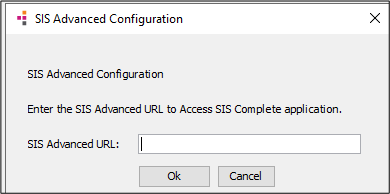
In the System Administration module, a SIS Advanced Configuration option has been added under the Enterprise heading. This configuration optionconfiguration option is used to enter the URL for accessing SIS Advanced.
Clinical Documentation Management
Modificationsthatwill be used with SIS Advanced have been made to the General page as described in the sections that follow, but these changes can also be used manually.
Pre-Admit Questionnaire/Instructions
For facilities that use SIS Advanced, when a Pre-Admit Questionnaire has been received or manually completed by the staff in SIS Advanced, the system will automatically import a copy of the questionnaire into the CDM module as a PDF document.
In the Pre-Admit Ques/Instructions Given section (shown hereshown here), the check mark, printer, and delete icons will appear active. The case status will be updated to In Progress. The automatic document import will not automatically fill the Yes check box, Date, or user. If you would like the fields completed, you must enter/select the data manually.

You can also manually scan or attach documents using the check mark icon after manually updating the case to In Progress.
When a document is added, the system will record the date the attachment was received/saved in Document Central and in the Document Editor.
If additional Pre-Admit Questionnaires are received from SIS Advanced, the system will delete earlier copies and save the most recent copy. Users can manually add additional documents as needed.
Scheduling
The field used to attach the Pre-Admit Questionnaire has also been enhanced to work with the Scheduling module. When a document is imported via SIS Advanced or manually added by scanning the document into AmkaiOffice, a “clip board’ icon (as shown below) will be placed on the schedule grid for the case indicating that the Pre-Admit Questionnaire has been received:

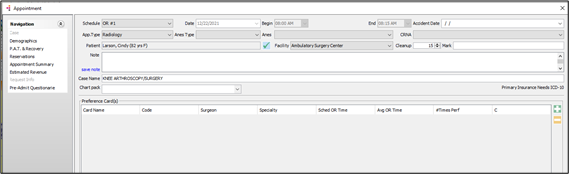
A link to access the attachment from the case has also been added to the navigation pane on the Appointment screen. To open the Appointment screen from the Schedule Grid, double-click or right-click the link on the Grid and select Edit. Click Pre-Admit QuestionnairePre-Admit Questionnaire to open and view the attachment.
Post-Op Questionnaire/Instructions
A new section for Post-Op Questionnaires/Instructions has been added to the General page of the CDM module. Similar to the Pre-Admit Questionnaire section, when a Post-Op Questionnaire has been received or manually completed by the staff in SIS Advanced, the system will automatically import a copy of the questionnaire into the CDM module as a PDF document.
In the Post-Op Ques/Instructions Given section (shown herehere), the check mark, printer, and delete icons will appear active. The case status will be updated to In Progress. The automatic document import will not automatically fill the Yes check box, Date, or user. If you would like the fields completed, you must enter/select the data manually.

You can also manually scan or attach documents using the check mark icon after manually updating the case to In Progress. When a document is attached manually, you must also complete the Yes, Date, and By fields manually if you want this information completed.
Cancelling a Case
If a case is canceled after questionnaires have been attached, the fields in CDM will be cleared. The document is still accessible in the Document Central module.
If the case is reinstated, the previously imported questionnaires can be assigned to the case by clicking on the Pre/Post Op Questionnaire check mark icon in the CDM module and selecting the document from the Unassigned documents in the Editor.
Document Central
Changes to Document Central have also been made to reflect the addition of the Post-Op field in CDM. Documents associated to fields in the CDM module will now display the date the document was attached, similar to how they display in the CDM module.
Reports
Checkpoint List
The new checkpoint fields associated to SIS Advanced Configuration have been added to the report: one under System Administration > Enterprise for the SIS Advanced Configuration and another under System Administration > Dictionaries > Configuration > SIS Advanced.
Checkpoint per Role
The new checkpoint fields associated to SIS Advanced Configuration have been added to the report: one under System Administration > Enterprise for the SIS Advanced Configuration and another under System Administration > Dictionaries > Configuration > SIS Advanced. The report will show “Y” (yes) if the Role has access or “N”, (no) if access has not been given for the new checkpoint.
Enhancements
AmkaiOffice Reports Updates
Administrative Reports
ASCA Outcomes Monitoring 2022
A new layout of the ASCA report is available. This layout reflects the changes made to Section: Volume – Procedure Type Summary, category III codes.
North Carolina Cost Transparency Report 2022
A new layout of the North Carolina Cost Transparency Report for 2022 has been added.
AS CAHPS Press Ganey Report with Patient Exclusions
The OAS CAHPS Press Ganey Report with Patient Exclusions has been updated to include the following data elements:
- Provider Type: Role assigned to the case provider. This field will be blank if no Role has been assigned in the Physician Dictionary.
- Provider Specialty: Default specialty assigned to the case provider. This field will be blank if no Specialty has been assigned in the Physician Dictionary.
- Site Address 1: Facility address 1
- Site Address 2: Facility address 2
- Site City: Facility city
- Site State: Facility State
- Site Zip: Facility Zip Code
State Reports
New York State Report 2018
To enable you to comply with New York state guidelines requiring organizations to submit a separate file to SPARCS for each physical location, we added the option to run the report by facility.
SIS Internal Notes
- The DbTool – Tester/Fixer “Clear Value of Supply on hand related DIEE tables” has been corrected and will no longer generate an error when run.
- The AmkaiAdmin password has been updated.
- This release includes upgrades to certain third party code to mitigate potential security vulnerabilities.